12/27/2025
Detail modal
Understand how the detail modal lets you step into a thought without losing context.
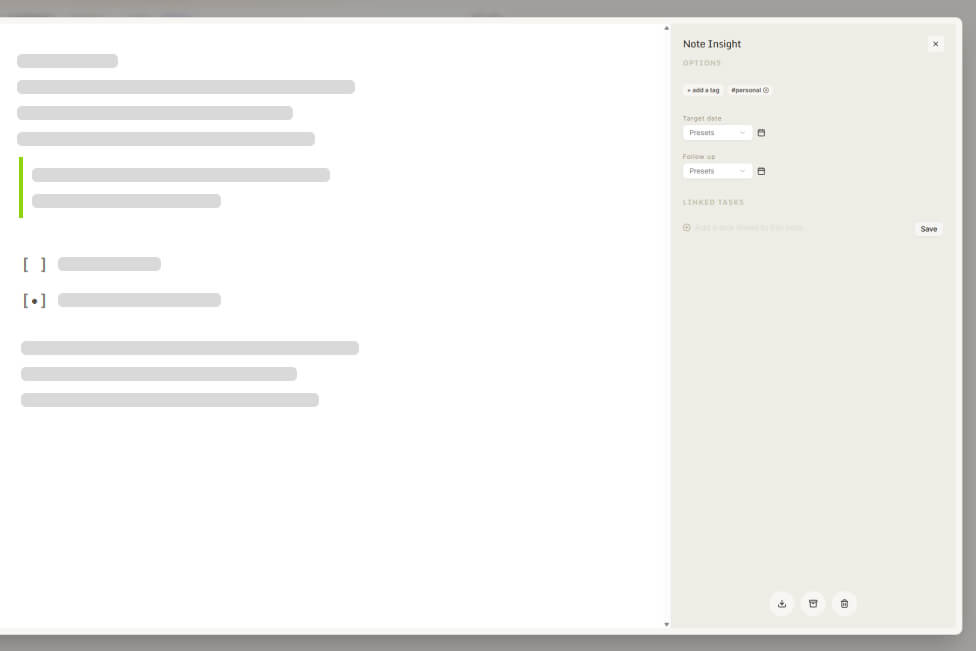
The detail modal is where you step into a single task or note to think it through.
It opens on top of your current view, so you can focus without losing your place.
Nothing else changes.
What the detail modal is for
Use the detail modal when a thought needs more space.
It’s designed for:
- reading a note in full
- continuing a thought
- making small, intentional adjustments
It is not a control panel.
It does not require you to organize or decide anything.
Opening the detail modal
You can open the detail modal by:
- clicking on a task or note
The modal appears on top of your current view.
Your context stays exactly as it was.
Content
The content area shows the full text of the item.
You can:
- write and edit freely
- add structure if it helps
- paste content from elsewhere
Changes are saved automatically.
There is no separate save step.
Context around the content
Information related to the item can live either around the content or directly inside it.
You can add:
- #tags
- @mentions
by writing them inline as part of your text, or by adjusting them around the content.
Both ways are equivalent.
Use whatever feels more natural while you’re writing.
Tags and mentions
Tags and mentions can be written directly into the content using # or @.
They can also be adjusted around the content if you prefer.
Tags and mentions are:
- personal
- private
- used only for your own retrieval
They do not affect sharing or visibility.
Dates and follow-ups
You may see dates associated with an item.
Dates are meant as reminders, not commitments.
Changing a date can affect when an item appears again, but it never:
- deletes the item
- duplicates it
- changes its content
Actions
The detail modal includes a small set of contextual actions.
The most common action is:
Archive
Archiving moves the item out of active views.
The item is not deleted and can be restored at any time.
How actions behave
Actions in the detail modal:
- never create copies
- never modify content on their own
- only affect state or visibility
Everything is reversible.
Navigation and closing
While the detail modal is open:
- your underlying view stays unchanged
- nothing is reset or refreshed
You can close the modal by:
- clicking outside it
- using the close control
- navigating elsewhere
Closing the modal never discards changes.
The detail modal exists to let you focus briefly, then return.
Nothing more.